Your precious memories such as vacations, birthdays, and daily snaps are stored in your Google Photos account for years to come. If for some reason you have to switch to a different Google account, or even if your Google Photos account runs out of storage space (Google Photos is shared with Gmail and Drive in 15 GB of free cloud space)? Manually downloading thousands of photos and re-uploading them is a time-consuming and tedious process nobody wants to face. That’s exactly why learning how to transfer Google Photos to another account is worth your time. Honestly, there’s a much better way.
Why Transfer Google Photos to Another Account?
People move photo libraries for all sorts of reasons. Here are the most common scenarios:
- Account Consolidation. Over the years, many users end up with multiple Google accounts. Merging photos into a single, primary account makes organization far easier and eliminates the hassle of switching logins.
- Storage Management. Google’s free 15 GB gets consumed quickly when you factor in Gmail and Drive. If your old account is nearly full, shifting photos to a newer account with more available space is a practical solution.
- Switching to a Professional or Family Account. Families and businesses increasingly rely on shared Google Workspace accounts. Moving photos into a managed account ensures proper backup and access for the right people.
- Preserving Memories Safely. Nobody wants to lose years of photos because an old account gets forgotten or deactivated. Transferring everything to an active account protects those memories.
After understanding why a Google Photos move to another account makes sense, the next step is finding the right tool for the job.
Best Free Google Photos Migration Tool – MultCloud
Doing this manually through Google Takeout or download-and-reupload is slow, tedious, and risks losing album structures or metadata. A web-based cloud management platform, MultCloud, solves all of that at once.
MultCloud is built specifically for cloud-to-cloud operations. Here’s what makes it ideal for this task:
- Exclusive Transfer Engine. Files move directly between accounts without ever touching your local computer. That means no downloading, no waiting, and no wasted disk space.
- Support for 40+ Cloud Services. Whether you’re working with Google Photos, Google Drive, OneDrive, Dropbox, iCloud, or Box, MultCloud connects them all under one dashboard.
- Flexible Task Configuration. Set up one-time transfers or schedule recurring tasks to run automatically. You decide what moves and when.
- Email Notifications. Receive alerts the moment a transfer finishes or encounters an issue, so you’re never left wondering.
- Zero Software Installation. Everything runs in your browser. Just sign up, connect your accounts, and start moving data.
So, how to transfer Google Photos from one account to another using this solution? The guide below walks you through every step.
How to Transfer Google Photos to Another Account in 4 Steps?
Before starting:
- Make sure both Google accounts are active and have sufficient free storage to receive the incoming photos.
- A stable internet connection is essential since data travels directly through the cloud.
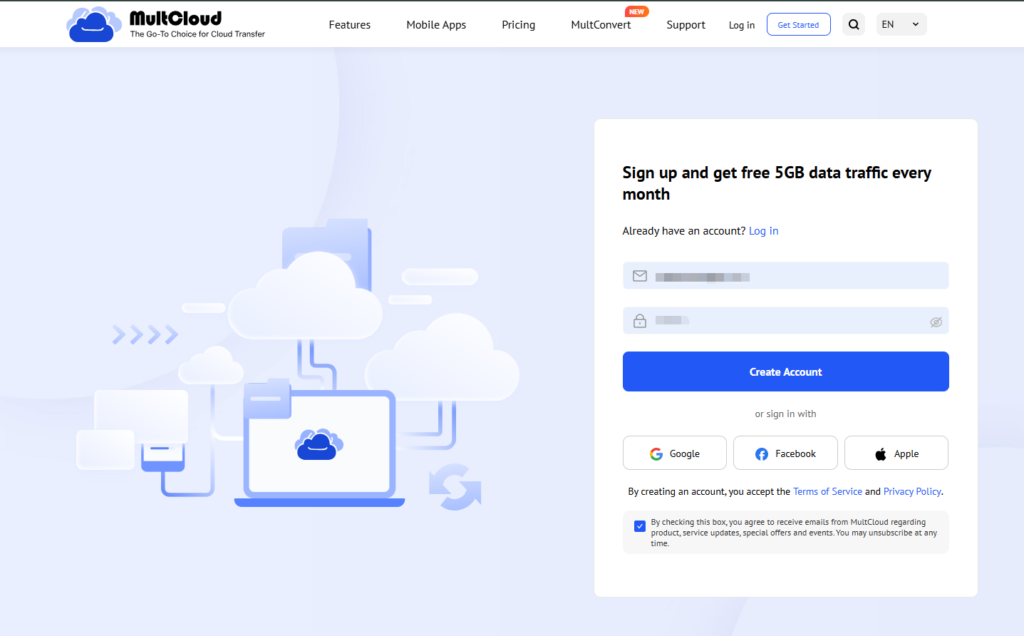
1. Sign Up for a Free MultCloud Account — Visit the MultCloud website and create a free account. No credit card is needed, and registration takes under a minute. Once you’re logged in, you’ll see the main dashboard.
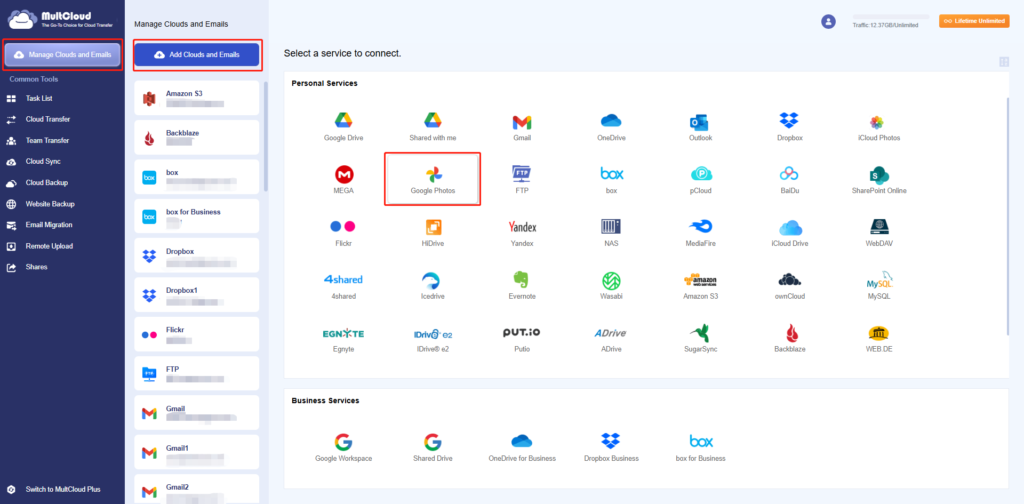
2. Add Both Google Photos Accounts — Click “Manage Clouds and Emails” in the left sidebar and choose Google Photos. Log into your source account — the one containing the photos you want to move — and authorize MultCloud to access your library. Repeat this process to add your destination Google Photos account as well.
3. Create a Cloud Transfer Task — Go to “Cloud Transfer” from the left panel. Select your source Google Photos account, then pick the albums or individual photos you want to transfer. Choose your destination Google Photos account as the target. You can also apply filters here to include or exclude specific file types.
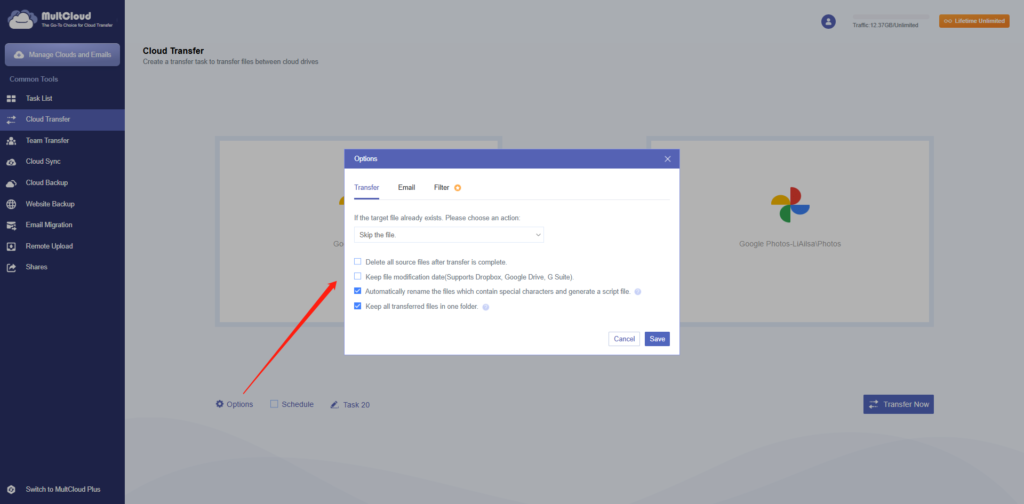
4. Start the Google Photos Transfer — Click “Transfer Now” to begin immediately. MultCloud handles the entire process in the background, shifting your images directly from one account to the other without using your local bandwidth.
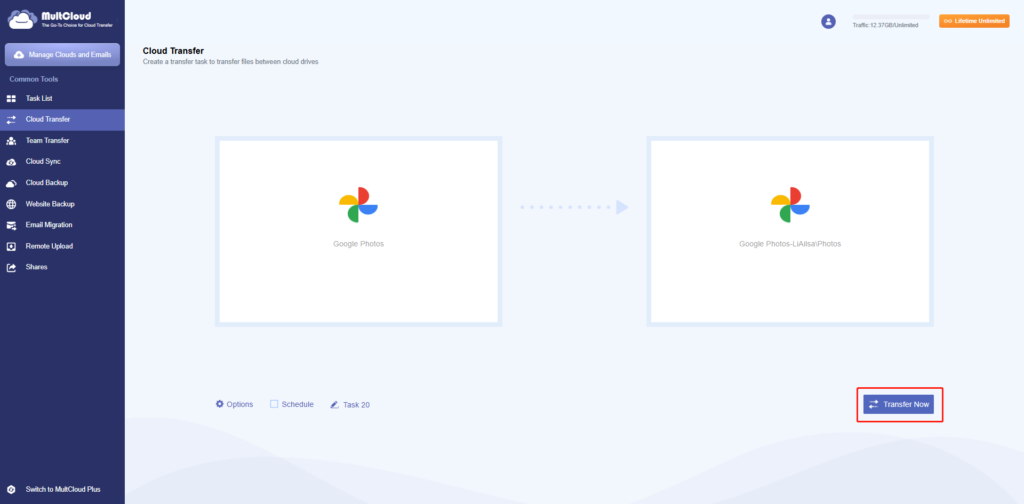
Tips:
- Take advantage of scheduled transfers if you’re moving photos in batches over several days with Schedule.
- In Options, use file filtering to skip RAW or video files if you only want JPEGs. Enable email alerts so you know exactly when each batch finishes.
- And because the transfer happens directly in the cloud, your home internet stays completely free for other tasks.
Besides syncing Google Photos to another account, you can also backup, or migrate files from Google Drive to iCloud Drive, OneDrive, Dropbox, iCloud Photos, or other clouds directly with the help of MultCloud.
The End
Moving an entire photo library between Google accounts used to feel overwhelming. It’s simple now. You now know how to swiftly and securely transfer Google Photos to another account, whether you’re moving to a work profile, combining accounts, or freeing up storage.