
In today’s information era, data of all types shapes our daily routines, so cloud storage has become a popular pick for saving important files. OneDrive and Dropbox are notable mainstream cloud services. OneDrive is integrated into the Windows system, and Microsoft 365 is for personal and professional needs.
That’s why many users transfer files from Dropbox to OneDrive: they only need a single storage subscription and no longer have to jump back and forth between different cloud accounts.
Can You Transfer Dropbox Files to OneDrive Without Downloading?
Which method do you usually use to move files from Dropbox to OneDrive? When comes to transfer files between cloud storage services, most immediately think of manually downloading files to local storage and then uploading them to another cloud drive. It’s a straightforward method that most people can handle without much trouble. You may also copy files from Dropbox and paste them into OneDrive, provided you have both desktop apps installed on your computer.
However, these two methods only work well for small-scale data transfers. When moving large volumes of data, they eat up your internet bandwidth and take much longer, and your computer must to keep running during the whole process. So, is there a way to move Dropbox files to OneDrive online, no local downloads required?
Absolutely. You can complete the transfer without first saving any files to your personal computer. A cloud-to-cloud transfer service moves files directly from one cloud storage account to another.
MultCloud: Move Files Easily from Dropbox to OneDrive Without Downloading
MultCloud is a web-based multi-cloud file management platform. Simply connect the cloud accounts you use, and you can handle all your file management, transfers, migrations and backups within one place. There is no constant switching between separate platforms anymore. Once your transfer jobs are configured, they will proceed as planned even if you shut down your PC. After migration, each file remains in its original folder structure. No more wasting time digging through files.
How to transfer files from Dropbox to OneDrive using MultCloud:
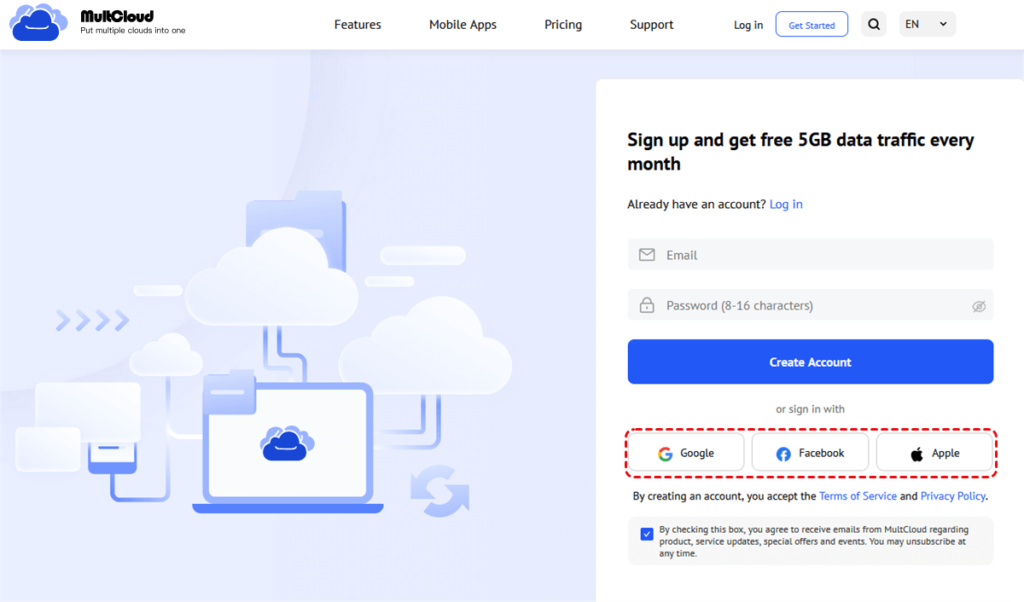
Step 1. Visit the official website of MultCloud, sign up for a MultCloud account and log in.
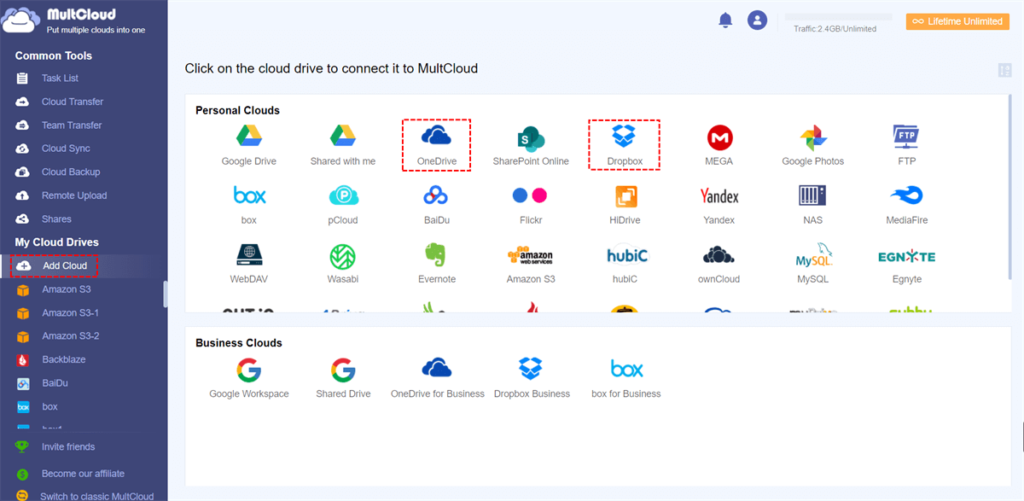
Step 2. Click “Add Clouds and Emails” and select Dropbox and OneDrive to give MultCloud authorization.
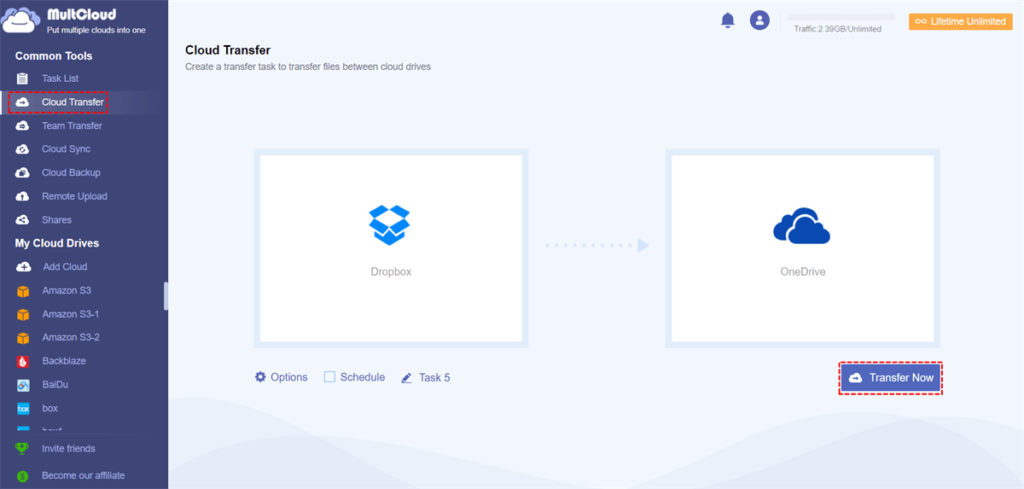
Step 3. Click “Cloud Transfer” in the left sidebar. Choose Dropbox as the source drive and OneDrive as the target one.
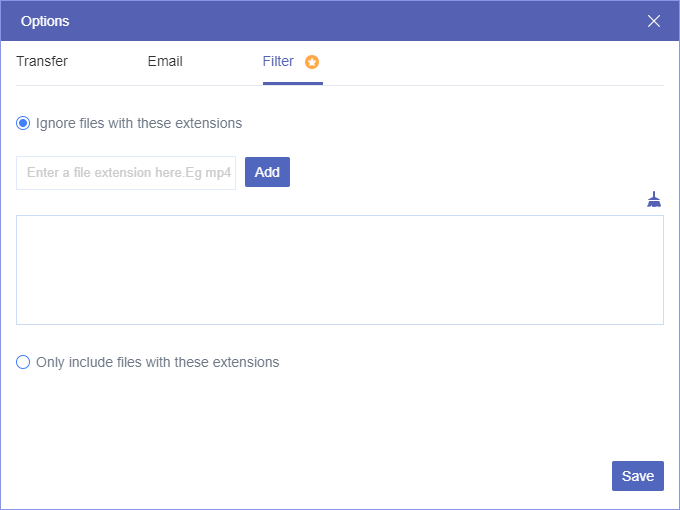
Step 4. Options and Schedule button You are able to set up email notifications, file filters and scheduled tasks (daily, weekly or monthly). Then, click “Transfer Now” to start the transferring.
Discover More MultCloud Features for Cloud Management
Beyond cloud transfer, MultCloud comes with a full set of features to manage all your cloud storage accounts. Whether you need data syncing, cloud backups, or file sharing, MultCloud streamlines every task for you.
Cloud Sync: Choose from 10 available sync modes to align data across cloud storage, back up content between accounts, or get real-time file updates — no manual copying required.
Cloud Backup: MultCloud creates extra copies of your cloud files and supports restoring older file versions whenever you need them, adding an extra layer of safety for your stored data.
File Share: File Share: Generate password-protected share links with expiry dates for files hosted on your cloud storage. This helps you manage who can view your content, while your original cloud data remains fully secure.
Email Migration: Email migration lets you move messages, attachments, and mailbox content from one provider to another—whether you’re switching services or merging multiple accounts. No manual exporting or re-uploading required.
Website Backup: You can backup website data like files and databases to cloud storage or another website to protect your website content and provides a convenient way to restore when things go wrong.
The End
Tired of wasting time downloading and reuploading files just to move data between Dropbox and OneDrive? Just switch a smarter tool — MultCloud. You can complete all your cloud file transfers, migrations, and even email data moves entirely online.
No local downloads, no keeping your PC running, no messy folder reorganization. Connect your cloud drives now and move or sync your files from Dropbox to OneDrive in just a few clicks!